Creating, editing and system rules
Creating a system
To create a system, click the "New system" button on the home page.
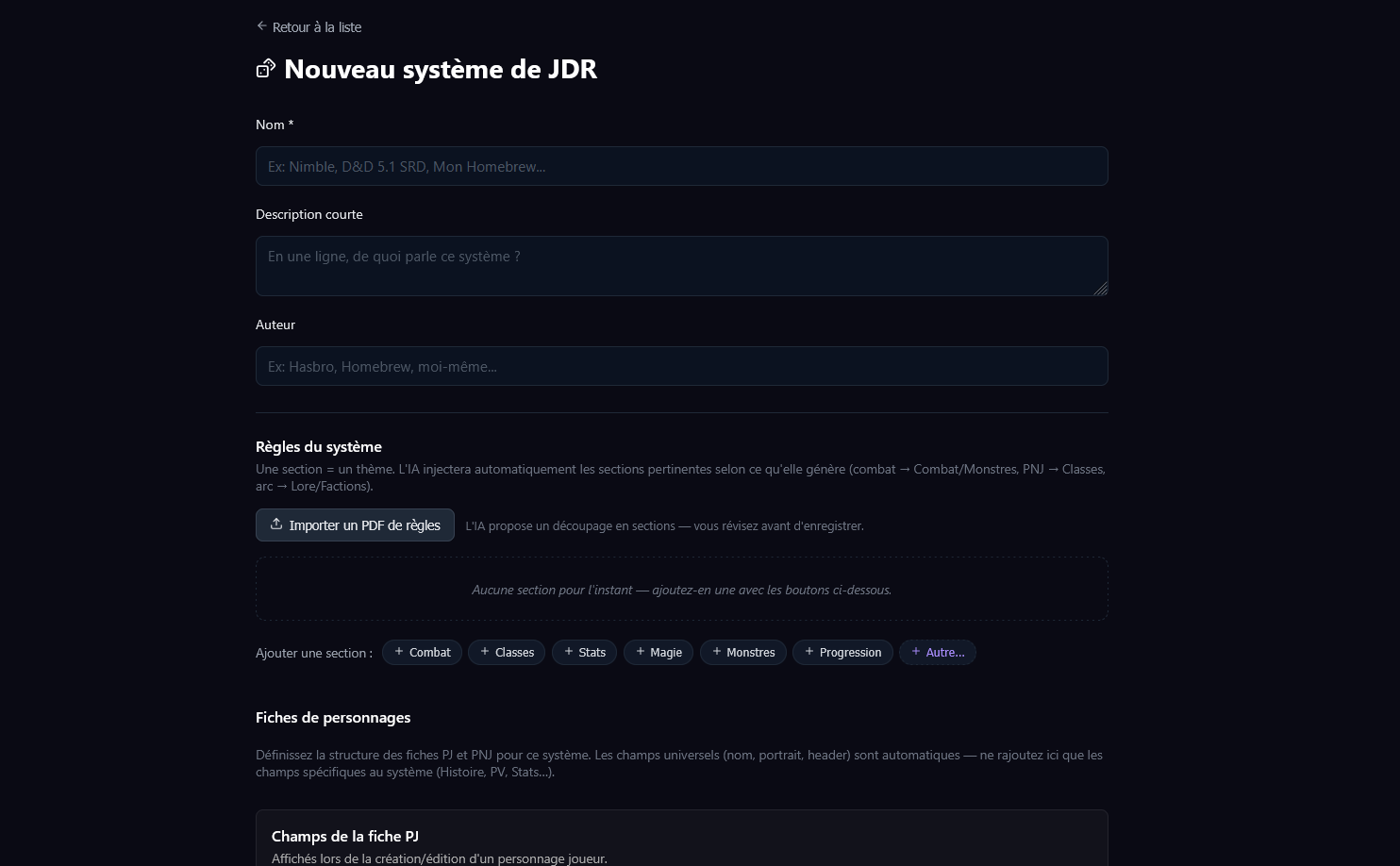
Fill in the name of your system, describe which game it is drawn from, and you can add the author.
Suggested sections
As mentioned on the home page, rules are structured into several sections.
On the UI side, the editor offers default sections: Combat, Classes, Stats, Magic, Monsters, Progression.
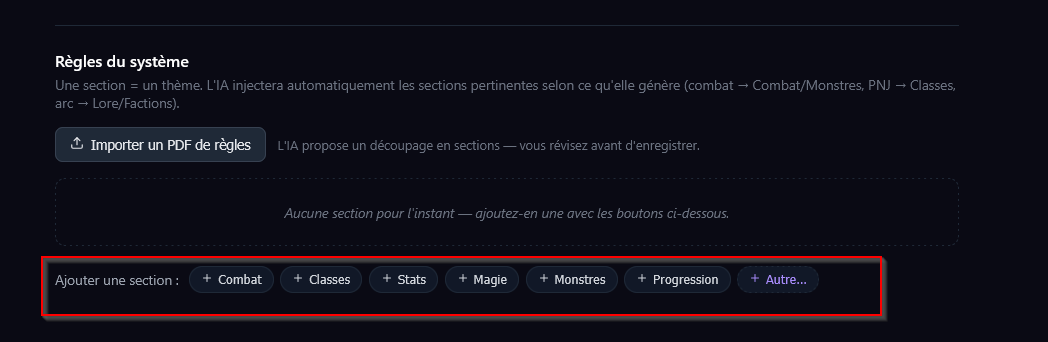
You are free to add others. But keep in mind:
The Lore module is used to describe the universe (factions, places, legends). The Game System should only describe the game mechanics, not the lore. This separation is intentional — the AI injects rules into contexts different from the lore, and mixing the two degrades the relevance of the prompts.
Importing a rules PDF
Rather than retyping your rules by hand, you can import a PDF: the application extracts the text, splits it into chunks, then the AI automatically structures it into sections (Combat, Classes, Stats…) that it adds to your editor.
Starting an import
- In the rules editor, click Import a PDF.
- Choose a file in PDF format (only this format is accepted).
- The analysis starts. It can take from a few seconds to several minutes depending on the size of the document and the AI provider used.
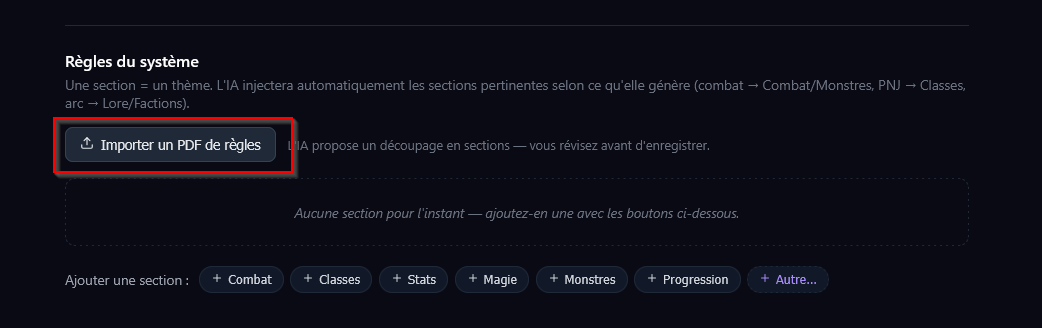
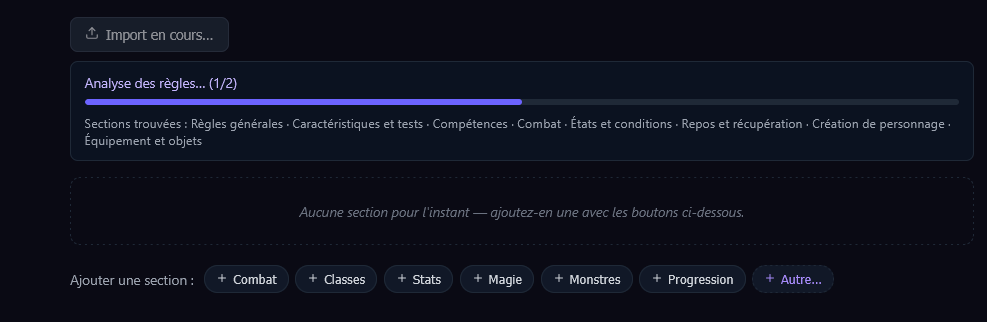
During processing, progress is shown in two stages:
- an extraction phase for the PDF text (no bar yet, the size is not known at this point);
- then an analysis bar that advances chunk by chunk, with the titles of detected sections appearing as they are found.
Here is what it looks like during the import:
And the result:
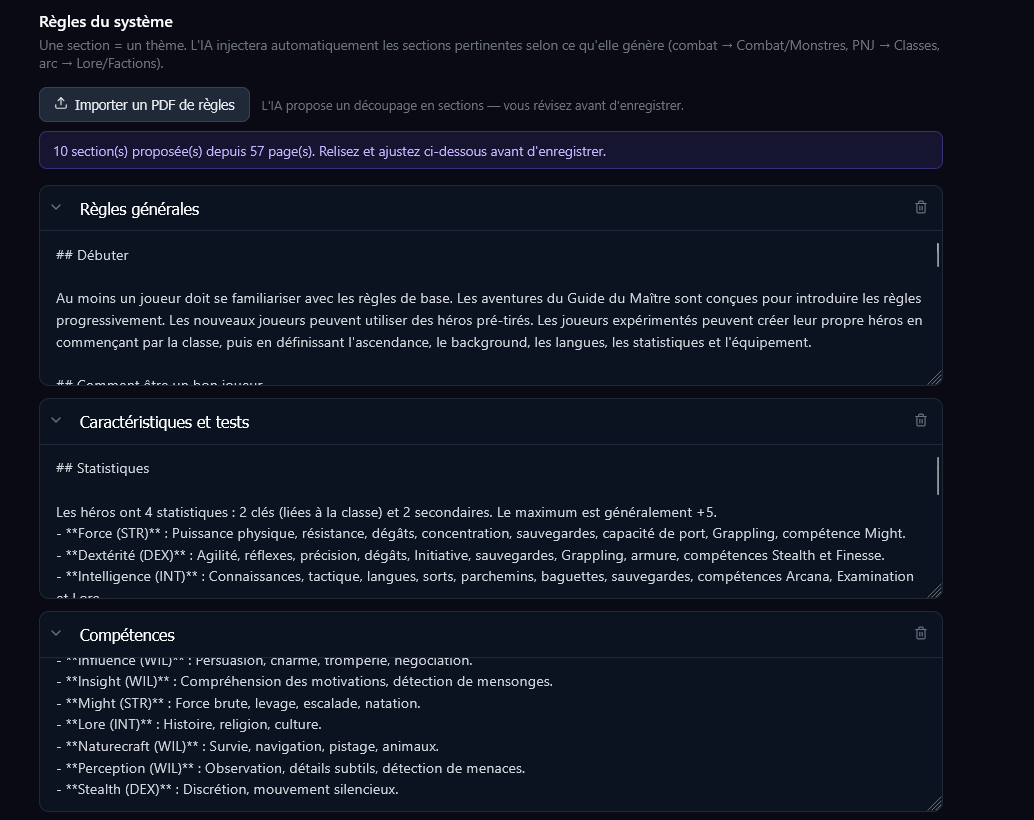
If your AI provider is momentarily overloaded, a status message informs you of the automatic retries: simply let the import continue.
Unless you really own an exceptional machine capable of running very heavy AI models, I recommend using a cloud provider. PDF processing is quite demanding and requires a lot of resources. Even a machine able to run a gemma4:26b, for example, is generally not enough — at least for now.
Sections are merged, not replaced
The import adds the extracted sections to those already present in the editor; it does not replace them.
- A brand-new section title creates a new card.
- An already existing title (e.g. a "Combat" section that already exists) has the imported content appended after the existing one.
Re-importing the same PDF therefore stacks the contents. If needed, clear the relevant sections before starting another import.
Nothing is saved automatically: the imported sections appear in the editor so you can review, correct or delete them. Click Save to confirm — only then are the rules stored.
Scanned PDFs (images)
If the PDF is a scan (image pages with no text layer), the application automatically falls back to optical character recognition (OCR). Recent versions — both Docker and the desktop installer — bundle the OCR engine (French + English), so it works without any extra installation.
That said, OCR is slower and a little less reliable than native text: for the best result, prefer a PDF whose text is selectable whenever you have the choice.
Limits and error cases
- Size: up to about 60 MB per file.
- Unreadable or corrupted PDF: the import stops with an error message.
- No usable text (empty PDF, or a scan the OCR cannot read anything from): "no rules found" message, nothing is added.
- A chunk that fails: the problematic passage is skipped and the import continues with the rest; if all chunks fail, the import is cancelled.
Local (Ollama) vs cloud provider
The result differs slightly depending on the configured AI provider:
- Ollama (local): the AI only detects the section boundaries and keeps your text as is — fast, no rephrasing.
- Cloud provider: the AI rewrites and formats the content of each section — cleaner text, but slightly reworded.
Settings
The PDF import parameters — chunk size and the AI call timeout — are configurable in Configuration → Settings.
If an import fails with a timeout or returns truncated sections, try reducing the chunk size (or increasing the timeout — and the context window for the AI you are using).