Spell catalogue (beta)
When your system has magic, the Spells tab of the system editor holds the spells themselves: one spell per card, with its level, school, characteristics and description.
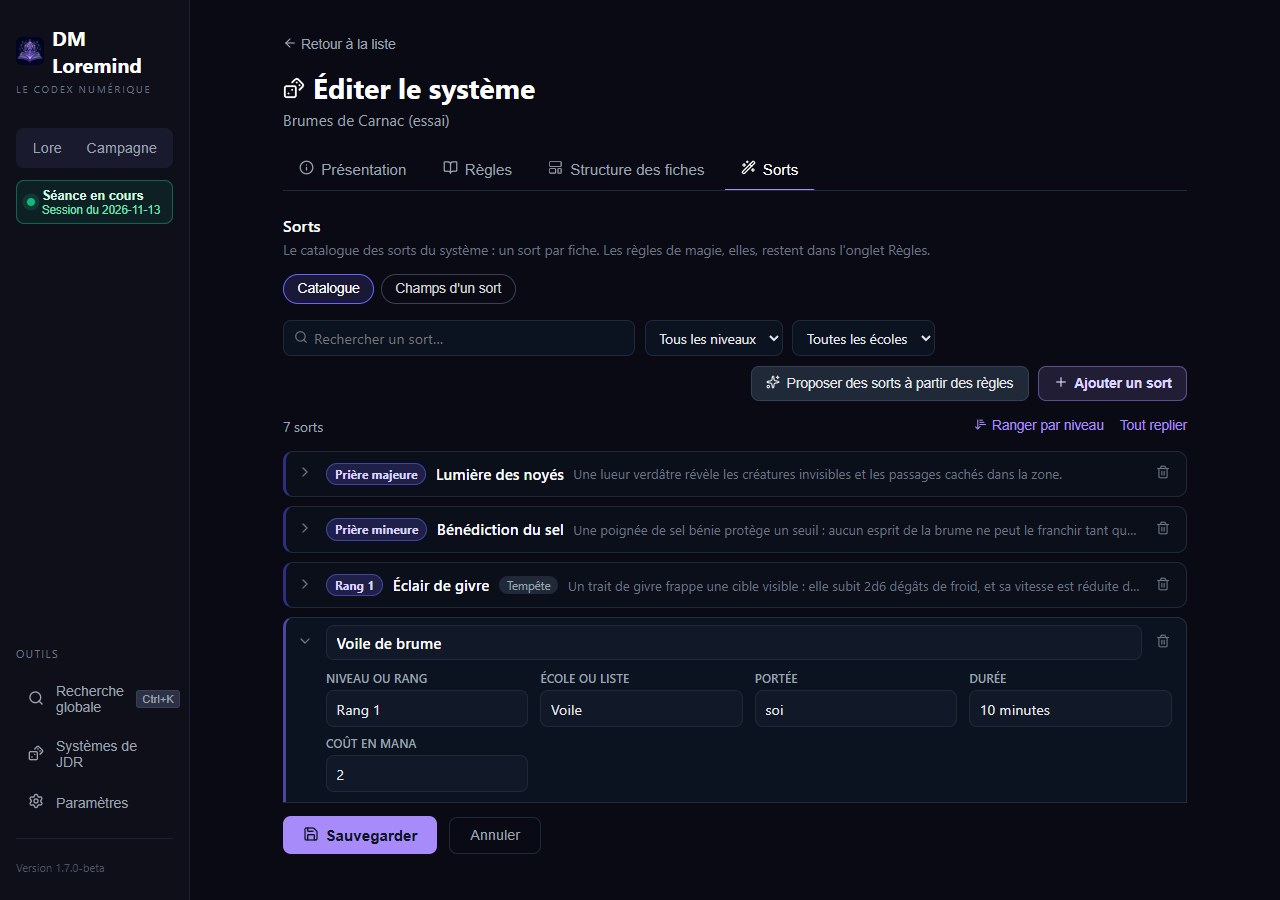
The rules of magic (how a spell is cast, what magic costs) stay in the Rules tab. The catalogue only holds the spells.
What a spell carries
Every spell has four fields shared by all systems:
- its name;
- Level or rank: free text ("1", "Cantrip", "Rank II");
- School or list: for sorting ("Evocation", "Druid");
- Description: what the spell does.
It also carries the fields specific to your system. You define them once, in Spell fields: range, duration, mana cost, components… Each field is text or a number. Common fields are offered as quick additions.
These fields then appear in every spell of the catalogue.
Filling the catalogue
- Open a system, then the Spells tab.
- In Spell fields, add the fields your system needs.
- Go back to Catalogue and click Add a spell. The spell opens at the top of the list: name it and fill in its fields. You can also have the spells suggested that your rules already describe.
- Save the system. The catalogue is saved with it, like the rules and the sheets.
A spell that was added and left completely empty is not saved. A spell that is filled in but has no name blocks saving: the screen takes you back to it.
Suggest spells from the rules
If your rules already describe spells, you do not have to retype them. In Catalogue, click Suggest spells from the rules.
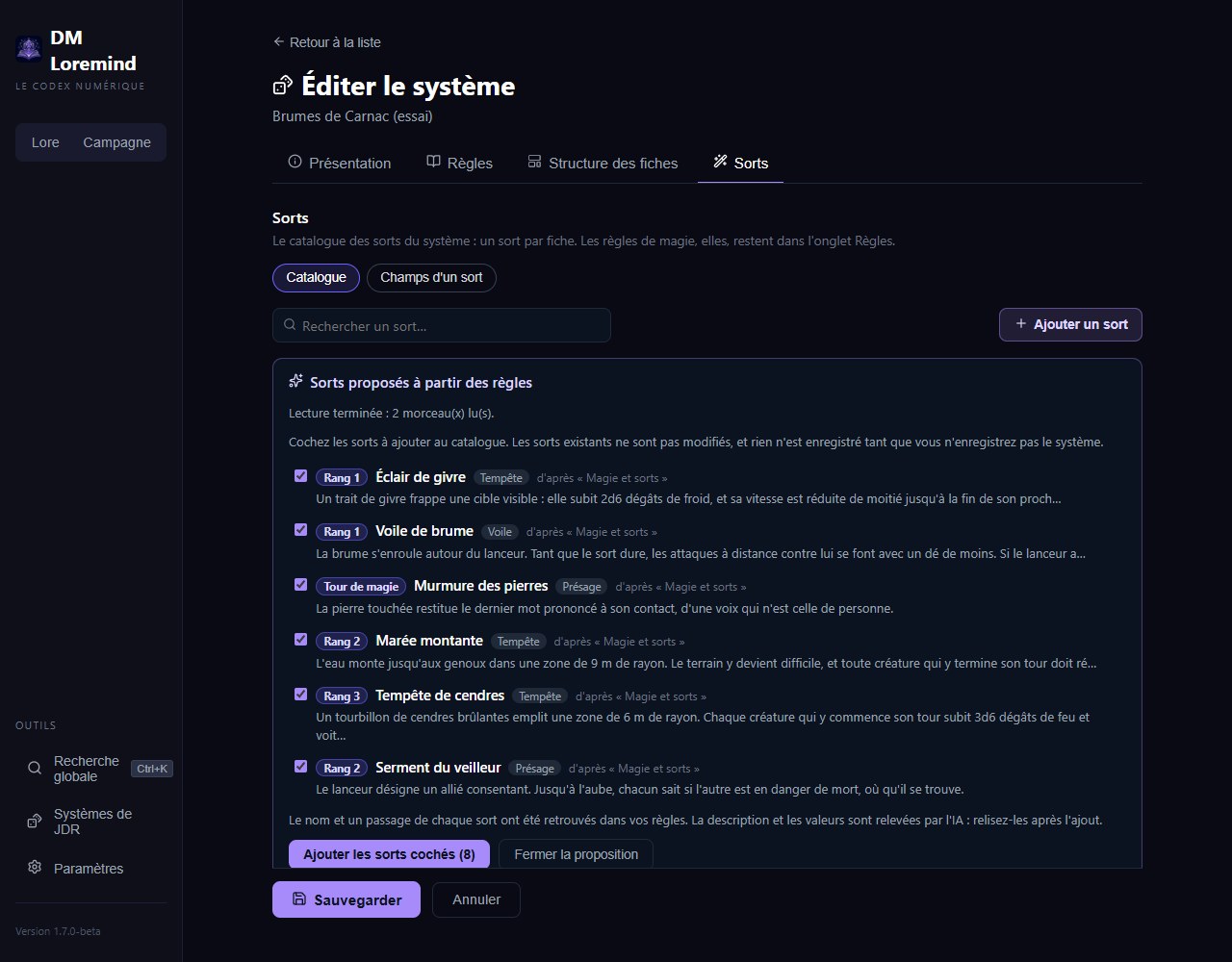
- Tick the sections that describe spells. Those whose title mentions magic, spells or prayers are already ticked — except equipment sections (scrolls, wands, magic items): an item that lets you cast a spell is not a spell.
- Click Read the ticked sections. The AI reads the rules piece by piece: allow one to two minutes per piece depending on the model. The screen tells you how many pieces there are before starting, and spells appear as the reading goes.
- Tick the spells to keep, then Add the ticked spells. They go to the end of the catalogue.
- Review them, then save the system.
Stop reading keeps the spells already found. If a piece cannot be read, Resume reading starts again from that piece.
The AI reads the rules shown in the editor: the version of the open language tab, saved or not. Spells stay in the language of those rules; they are not translated.
Define the Spell fields before starting the reading: the AI fills in range, duration or mana cost when the text gives them. With no field, it only picks out the name, level, school and description.
The AI only points out the spells: it gives their name, as written in your rules, and where they start. The description of each spell is then taken from your rules by the application, word for word: it is the text that runs from the name of the spell to the next spell. A spell whose name is not in your rules — invented, translated, from another game — is discarded, and so is a magic item.
The level, the school and the field values, however, are picked out by the AI: review them after adding. When the AI gives no school, it is the one named by the section title ("Magic › Fire Spells"). The level is read first on the line just above the name of the spell in your rules ("TIER 2", "Cantrip") when there is one; failing that, it is the one given by the AI.
The suggestion only adds. A spell already in the catalogue is greyed out and never changed.
The levels and schools of suggested spells are written one single way, whichever piece they were found in: a numbered level by its number alone ("1", not "Level 1"), level-0 spells under the name Cantrip ("Tour de magie" when the interface is in French), a school by its short name ("Fire", not "Fire spells").
Finding a spell
- Search for a spell… searches the name, the description and the fields.
- The All levels and All schools lists filter the catalogue. They appear as soon as there are at least two levels or two schools.
- Sort by level sorts the catalogue by level, then by name: cantrips first, then levels 1, 2, 3… The order only changes at that moment: spells do not move while you type.
- Harmonize levels and schools appears when some spells in the catalogue do not write their level or school like the others ("Level 1" and "1", "Fire spells" and "Fire"). One click rewrites them one single way; the number in brackets tells you how many spells are concerned. Like everything else, nothing is kept until you save the system.
- Collapse all and Expand all apply to the spells shown.
Once collapsed, a spell reads at a glance: level, name, school and the start of the description.
A sheet's known spells
A PC, NPC or Enemy sheet can know spells from the catalogue. The Known spells block appears on these sheets as soon as the campaign's system has a catalogue.
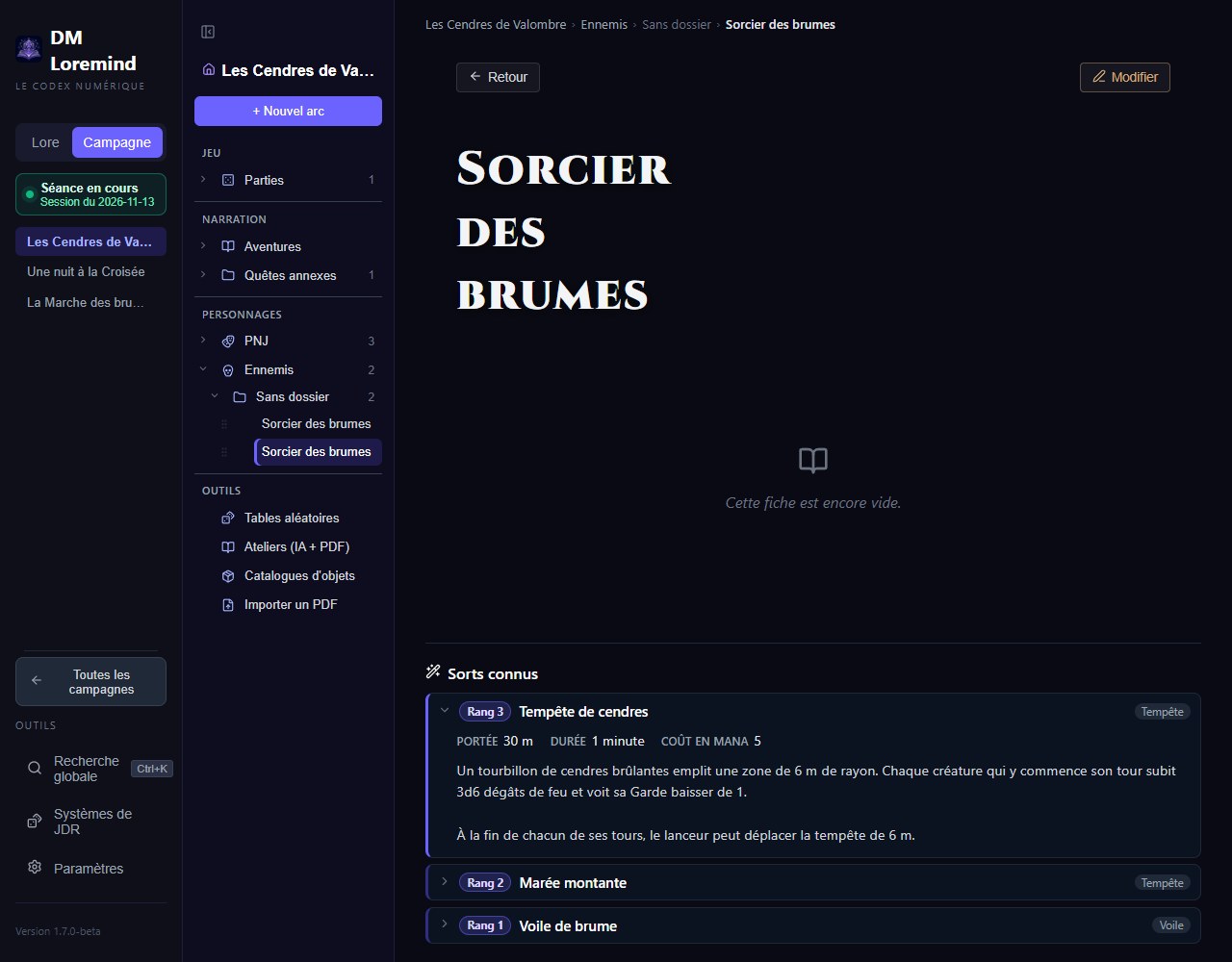
- When editing: search for a spell by name, level or school in Search for a spell to add…, then click it. A spell's cross removes it. Known spells are saved with the sheet; Cancel changes nothing.
- When reading: each known spell opens on its characteristics and its description. A sheet that knows no spell does not show the block.
The sheet does not copy the spell: it points to it. If you correct a spell in the catalogue, every sheet that knows it shows the correction. If you remove a spell from the catalogue, it disappears from the sheets.
Spells during a session
In session mode, the reference panel has a Spells tab when the campaign's system has a catalogue.
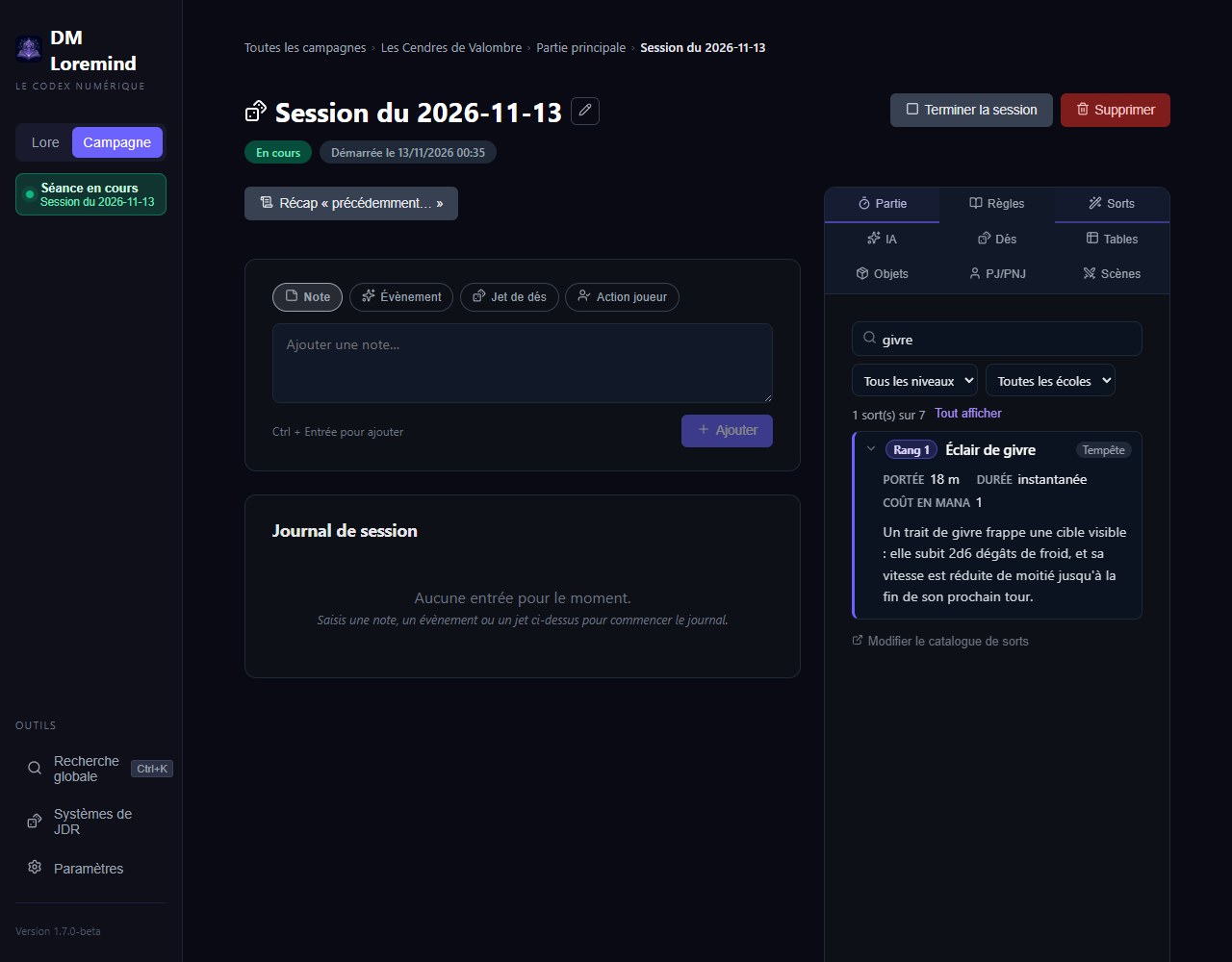
Search and the filters by level and by school are instant and work without AI. A click opens a spell on its characteristics and its description. Edit the spell catalogue opens the system editor in a new tab, without leaving the session.
Good to know
- Renaming a field: values are stored under the field's name. If you rename a field, its values are no longer shown; they come back if you give it its old name again. Nothing is deleted.
- Backup: the catalogue is part of the content export and import, along with the system.
- Deleting a system deletes its catalogue.
- A spell split across two pieces: rules are cut before a heading whenever possible. A very long spell, or one without a heading, may straddle two pieces and be picked out only in part: check the descriptions.
- Changing a campaign's system: sheets keep their known spells, but only show those from the current system's catalogue.
- PDF booklet and Foundry export: known spells are not included yet.