Desktop install (double-click)
The simplest way to use DM Loremind: a standalone installer, with no Docker, Java, or Python to install. You double-click, and the application opens in your browser.
1. Download
Head to the Download page and pick your platform:
- Windows →
.msifile - Linux →
.AppImagefile
The AI runs through the cloud (1min.ai, Mistral, Google AI Studio, OpenRouter) — no particular requirement. To run the AI locally via Ollama, plan for at least 16 GB of RAM; for a comfortable experience, aim for 32 GB of RAM and an NVIDIA GPU with 16 GB of VRAM. See Ollama configuration.
2. Install
Windows (.msi)
- Double-click the downloaded
.msifile. - Follow the wizard (installation folder, shortcuts). No administrator rights required — the installation is done for your user account only.
- On the last screen, leave the "Launch DM Loremind" box checked to start right away.
The application then appears in the Start menu (under the "DM Loremind" group).
Linux (.AppImage)
- Make the file executable:
chmod +x DM_Loremind-*.AppImage
- Double-click it (or launch it from a terminal:
./DM_Loremind-*.AppImage).
Some recent distributions no longer include libfuse2, which is required by AppImages. If the file refuses to start:
sudo apt install libfuse2
Alternative without installing anything: launch it with ./DM_Loremind-*.AppImage --appimage-extract-and-run.
3. First launch
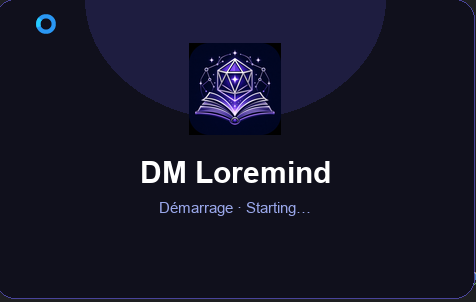
- A splash screen is displayed while the engine starts up (a few seconds), then the application opens automatically in your default browser:
- On the very first launch, the default language is French on a French system, or English for all others.
- Everything runs locally: the interface is served at
http://localhost:8080.
By default, the admin username and password are admin / admin, and the
application listens on port 8080 (so the default URL is http://localhost:8080).
Controlling the application
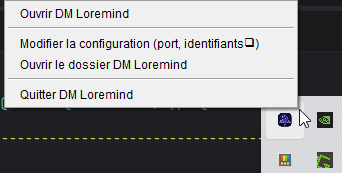
A notification-area icon (taskbar, on Windows and most Linux desktops) lets you, via a right-click:
- Open the application in the browser;
- Edit the configuration (port, admin credentials);
- Open the data folder;
- Quit cleanly (which also stops the background AI engine).
Where is my data?
Everything lives in ~/.loremind (%USERPROFILE%\.loremind on Windows), outside the installation folder — so it is never touched by an update:
- the database (H2, file-based);
- the images;
- the
loremind.propertiesconfiguration: port (8080by default) and admin credentials (admin/adminby default).
You can adjust these settings via the systray icon → "Edit the configuration" (applied on the next startup).
What's next?
- Ollama configuration — for a 100% local AI.
- Updates — the application notifies you of new versions.
- Settings — the application settings (AI providers, etc.).