Using folders and subfolders
Folders are the nodes of your Lore's tree structure. They are used solely for organization: the pages are what actually contain the content of your universe.
Starting the creation
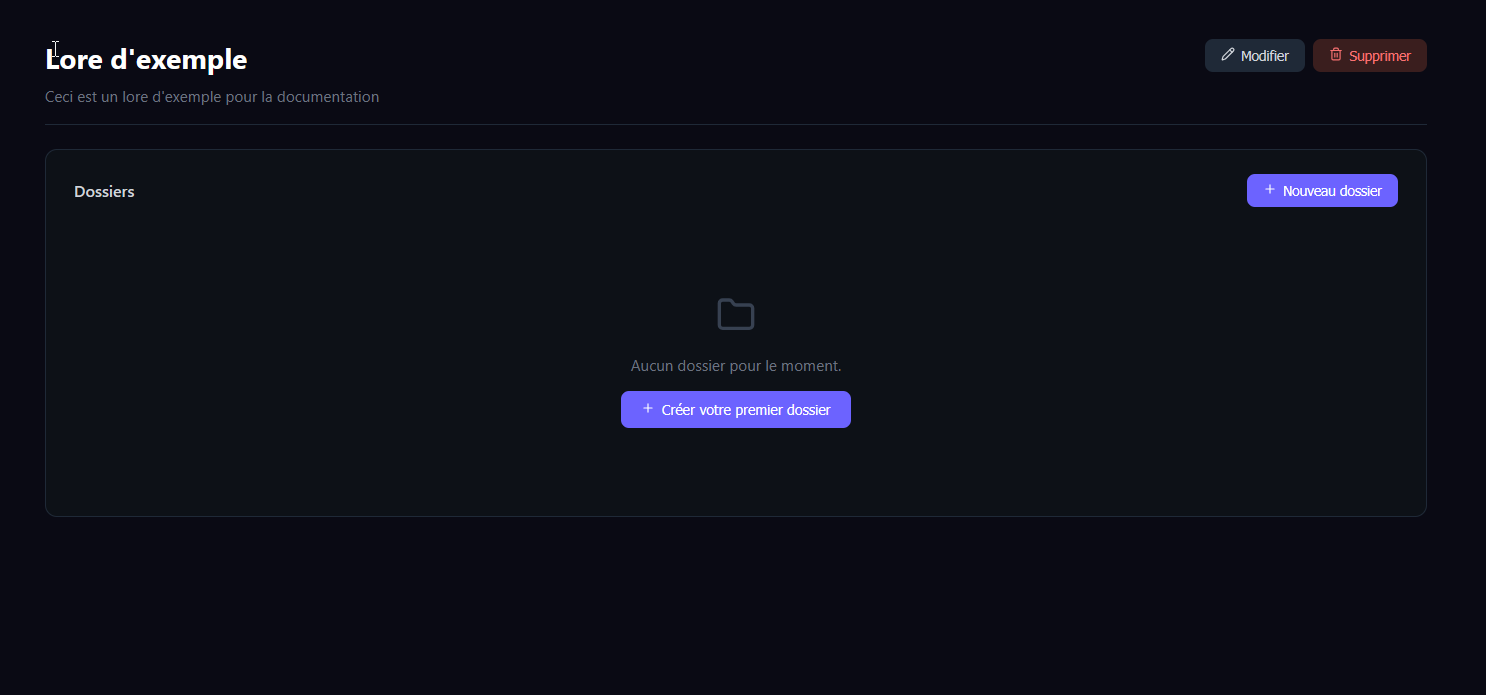
From your Lore's home screen, in the Folders section:
- Click the New folder button to the right of the section title.
- If you don't have any folders yet, the Create your first folder button in the center of the screen does the same thing.
You can also create a subfolder from the view of an existing folder — the parent will then be pre-selected in the form.
The form
A Create a new folder page opens with the following fields:
- Folder name (required) — for example
Characters,Cities,Factions. Prefer a category name rather than a concrete entity: aCitiesfolder will contain several city pages, not the other way around. - Parent folder (optional) — leave empty to create a folder at the root of the Lore, or choose an existing folder to create a subfolder.
- Icon — choose from the grid of icons provided. It's a visual marker in the sidebar and the folder grid, with no functional impact.
- Description (optional) — a few words to remind you what the folder is for. Useful if you come back to the project after several weeks.

Confirm with Create folder. You then land on the folder view, ready to create new folders, templates, or new pages.
Creating a subfolder
There are several ways to create a subfolder:
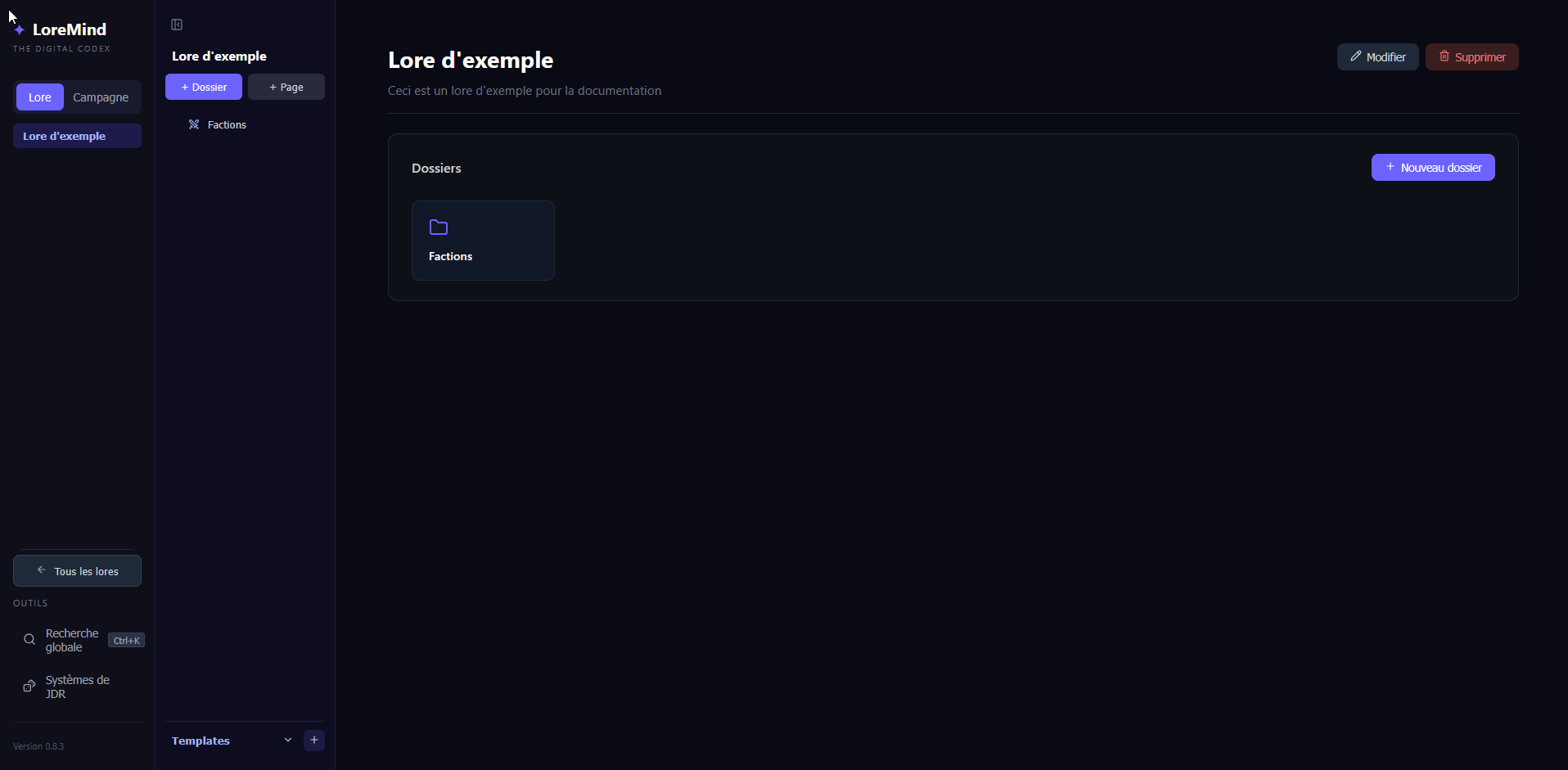
- Click the purple +Folder button at the top of the list. In the page that opens, the "parent folder" field defaults to the root, but you can select another existing folder that will become the parent of the new folder.

- Directly from the list: if you hover over a folder, you'll see 2 small buttons that let you either create a folder or a page. The one on the left lets you create the subfolder:

Unlike the +Folder button, the left-hand button lets you create a folder with the correct associated parent folder.
- Finally, you can go into the folder you created, where you'll see a page that looks like this:

Clicking the + New subfolder button lets you create a subfolder with the associated parent folder, as with the second method.
Editing / deleting a folder
Finally, you can edit a folder by clicking the "Edit" button in the top right, or simply delete it by clicking the "Delete" button. To do so, you need to be on the folder.
Best practices
- Folders = categories, pages = entities. Avoid a folder that would contain a single page in the long term: if the entity stands alone, put it directly at the root.
- Maximum depth of 3 in 90% of cases. Beyond that, navigation becomes cumbersome — see Hierarchy and navigation.
- Renaming later is risk-free. Links between pages are stored by identifier, not by name: you can reorganize freely.
If you're unsure about the structure, start flat (all folders at the root) and group them into subfolders only when a folder exceeds a dozen pages.