Templates and the block editor
A template defines the structure of a page type — which blocks it is made of and how they are laid out. For example, if you want to define a city with a "History" block and a "Population" block...
Creating a template
To create a template, click the "+" button in the template header at the bottom of the list from your lore:

The editor opens: name, description, default folder, and above all the block builder — a palette of block types on the left, and a canvas on a 12-column grid where you compose the sheet's layout:
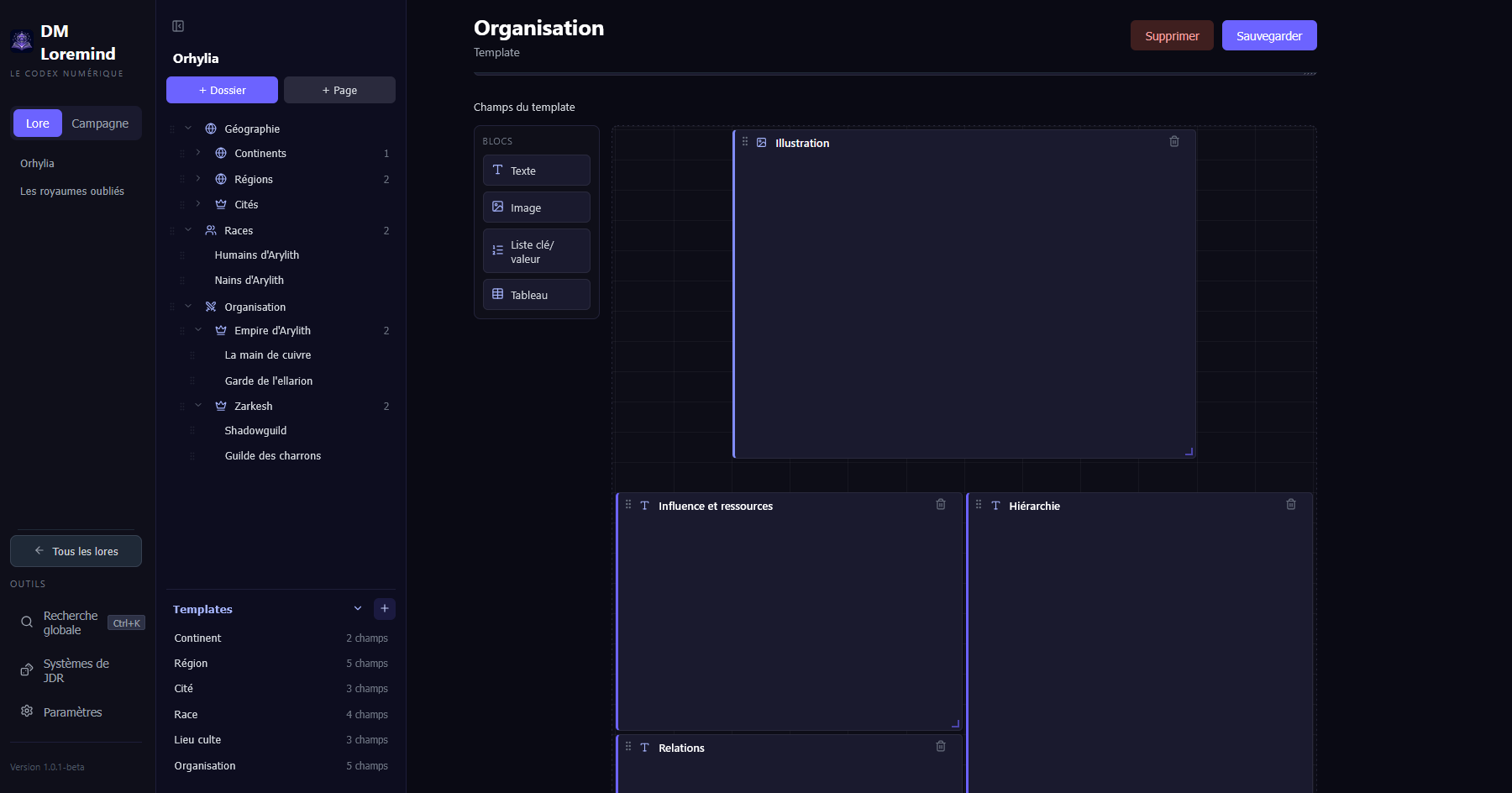
The block builder
- Add a block — drag a type from the palette onto the grid.
- Move — grab the block's handle and drop it wherever you want (free placement, not just stacked).
- Resize — handles on the right edge (width, 1 to 12 columns), the bottom edge (height) and the corner (both at once).
- Rename in place — click the block's name and type. Renaming a block doesn't lose the content of existing pages: values are anchored to a stable identifier, not to the name.
Available block types
| Type | Usage | Rendering |
|---|---|---|
| Text | Free text, paragraphs (History, Description) | Textarea |
| Image | One or more reframable images | Full-frame carousel |
| Key/value list | Label → value pairs, labels fixed at the template level (e.g. Population, Area, Climate) | List of label/value fields |
| Table | Tabular data in rows and columns (e.g. resources, statistics) | Editable table |
The Image block
The Image block replaces the old gallery on lore pages:
- several images per block, with carousel navigation (previous / next, clickable dots);
- reframing: drag the image inside its frame to choose what's visible ("Drag to reframe");
- zoom with the mouse wheel, from 40% to 400%;
- the framing and zoom are remembered per image and per page — the same illustration can be framed differently on two pages.
A template where no block has been placed yet keeps the historical stacked rendering (single column). As soon as you place or resize a first block in the editor, the grid layout takes over.
Editing a template
You can simply edit a template by clicking on it in the template section.
Deleting a template
You can delete a template by clicking the "Delete" button in the top right when you have returned to its page.
Best practices
- Start minimal — 3-4 blocks are enough to get started; you can add more and refine the layout later.
- Name clearly — "History" is more meaningful than "Long description".
- Image block first, full width — gives the page visual appeal.
- Short blocks side by side — a 4-column Key/value list next to an 8-column Text makes a very readable sheet.