Navigation and global search
The main sidebar opens Lore, Campaigns, Game Systems and Settings. Inside a setting or campaign, a second sidebar shows its tree and creation commands.
Find a sheet
Click Global search or press Ctrl + K (or Cmd + K). Type at least two characters. Search covers settings, folders, templates and Lore pages, along with campaigns, NPCs, PCs, enemies, random tables and item catalogues.
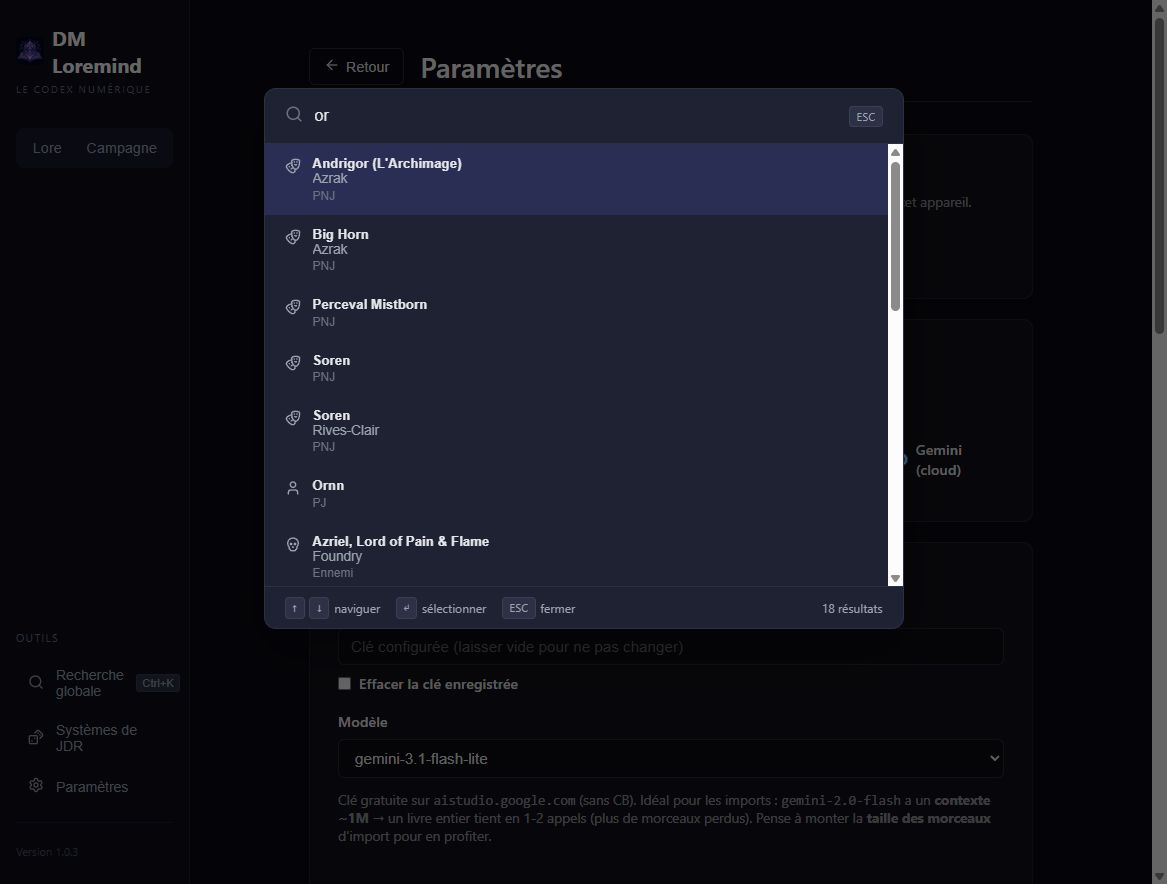
The label under each title identifies its type. Lore pages appear first, followed by campaign resources, folders, templates and root entities.
| Key | Action |
|---|---|
| ↑ / ↓ | Select the previous / next result |
| Enter | Open the selected result |
| Escape | Close search |
This palette searches saved entities. To ask a question about a PDF, use the AI Workshop. Arcs, chapters and quests remain accessible through the campaign tree.
Use the tree
- On wide screens, the chevron expands or collapses a branch; its name opens the sheet. On phones and tablets, use the levels described below.
- + buttons create an item in the selected branch's context.
- The sidebar title returns to the setting or campaign home.
- Preparation indicators flag gaps on scenes and propagate them to their parents.
Reorder and move
Where supported, drag an item to reorder it or drop it onto a compatible parent to move it. Supported destinations depend on the type: Lore pages into folders, scenes into chapters, chapters into arcs, NPCs and enemies into their folders. Incompatible locations reject the drop.
Tree order is separate from graph layout. Moving a scene node in a graph changes its screen position, not its narrative list order. To change connections, see Narrative branches.
Language
Choose French or English under Settings → Interface language. The change is immediate and remembered on this device. Screenshots use the French interface; controls occupy the same locations in English.
Phone and tablet (beta)
On compact screens, the top bar replaces permanent sidebars:
- Open menu shows Lore, Campaign, Game Systems and Settings;
- Open tree shows the current setting or campaign;
- the magnifier opens global search;
- Session in progress appears when a session is active, with a chooser when several are running.
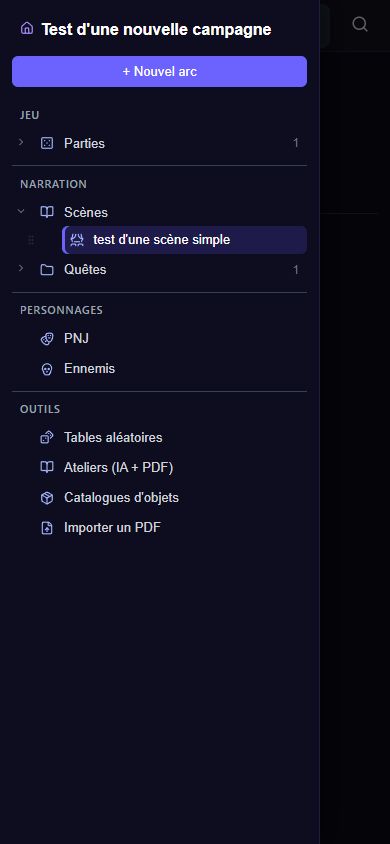
The menu and tree open in separate drawers. Tap the dimmed background, close button or Escape to dismiss one. Choosing a page also closes the drawer.
Browse one level at a time
Recent beta builds show one level at a time in the compact tree. Tap a row with a chevron to enter its branch: an arc shows its chapters, then a chapter shows its scenes. The back button at the top moves up one level.
Choose Open sheet to view the currently opened parent. A row without children opens its page directly and closes the drawer. Creation commands for the current level sit in its header. Preparation dots and counters remain visible. Reopening the drawer positions it near the page you are viewing.
The screenshot above shows the earlier nested compact tree. Level navigation replaces it in later beta builds.
On wide screens, Collapse tree reduces the secondary sidebar and Expand tree restores it. To use a desktop installation from another device, configure tablet access. Responsive layout alone does not connect a tablet to the PC.